Using a Domain with Azure DNS
Azure DNS
Azure DNS is a hosting service for the Domain Name System (DNS) that provides name resolution using Microsoft Azure's infrastructure.
What is DNS?
DNS (Domain Name System) is a protocol within the TCP/IP stack. It translates human-readable domain names — such as www.wideworldimports.com — into machine-readable IP addresses. IP addresses enable computers and networked devices to identify and route requests to each other.
DNS uses a global directory hosted on servers around the world. Microsoft is part of this network and provides DNS services via Azure DNS.
A DNS server is also known as a DNS name server or simply a name server.
How Does DNS Work?
A DNS server performs two primary functions:
- Caching local results of recently accessed domain names and their IP addresses for faster responses. If the domain isn’t cached, the request is forwarded to another DNS server.
- Hosting an authoritative database of key-value pairs containing IP addresses and host/subdomain names. This is often used for services like email and websites.
DNS Server Assignment
To access web-based resources, devices must refer to a DNS server.
- On a local network (on-premises), DNS settings come from a local server.
- On external networks (e.g., at a hotel), DNS settings are provided by the internet service provider (ISP).
Domain Lookup Process
Here's a simple overview of how a DNS server resolves a domain name request:
- If the domain is found in the cache, the server responds quickly.
- If not, the DNS server queries other servers. If a match is found, it updates the cache and completes the request.
- If no match is found after several attempts, it responds with a domain not found error.
IPv4 and IPv6
Each networked device has a unique IP address within its domain.
- IPv4: Four sets of numbers between 0-255, separated by dots (e.g.,
127.0.0.1). Still the most widely used version. - IPv6: A newer standard that uses eight groups of hexadecimal numbers (e.g.,
fe80:11a1:ac15:e9gf:e884:edb0:ddee:fea3).
Many devices now support both IPv4 and IPv6. DNS servers can map domain names to either type.
DNS Configuration for a Domain
Whether hosted by a third party or self-managed, DNS servers must be configured for each type of host (web, email, etc.).
As an administrator, you can configure your DNS server with Azure DNS. In this case, the DNS server acts as the Start of Authority (SOA) for the domain.
DNS Record Types
DNS configuration information is stored in files within a DNS zone. Each entry is called a record. Common types include:
- A: Host record, maps a domain name to an IP address.
- CNAME: Canonical Name, an alias from one domain to another.
- MX: Mail Exchange, directs email traffic to a mail server.
- TXT: Text record, associates a string with a domain (used for Azure & Microsoft 365 verification).
Other types include:
- Wildcard
- CAA (Certificate Authority Authorization)
- NS (Name Server)
- SOA (Start of Authority)
- SPF (Sender Policy Framework)
- SRV (Service Location)
SOA and NS records are created automatically when a DNS zone is created in Azure DNS.
Record Sets
Some record types support record sets, which allow multiple entries for a single domain. Example:
www.wideworldimports.com. 3600 IN A 127.0.0.1
www.wideworldimports.com. 3600 IN A 127.0.0.2
SOA and CNAME records cannot use record sets.
What is Azure DNS?
Azure DNS lets you host and manage your domain using Microsoft’s global name server infrastructure. You can manage all your domains using your existing Azure credentials.
- Azure DNS acts as the domain’s SOA.
- Azure DNS does not allow you to register a domain — use a third-party registrar for that.
Why Use Azure DNS?
Azure DNS is built on Azure Resource Manager, offering benefits like:
- Enhanced security
- Easy to use
- Support for Private DNS
- Support for Alias Record Sets
Azure DNS does not support DNSSEC (Domain Name System Security Extensions). Use a third-party provider if DNSSEC is required.
Security Features
Azure DNS provides the following:
- Role-Based Access Control (RBAC) for fine-grained access to Azure resources.
- Activity Logs to track resource changes and identify errors.
- Resource Locking to prevent unwanted changes to critical resources.
Usability
Azure DNS can manage DNS for both Azure services and external resources using:
- Azure Portal
- Azure PowerShell
- Azure CLI
- REST API / SDKs for automation
Private DNS Zones
Azure DNS allows creation of private DNS zones for VMs within virtual networks (VNets) without needing custom DNS solutions.
Benefits include:
- No need for separate DNS solutions.
- Supports all record types: A, CNAME, TXT, MX, SOA, AAAA, PTR, SRV.
- VM hostnames in the VNet are maintained automatically.
- Supports Split-horizon DNS: same domain name can exist in both public and private zones with routing based on query source.
Alias Record Sets
Alias records can point to Azure resources such as:
- Azure public IP addresses
- Azure Traffic Manager profiles
- Azure CDN endpoints
Alias records are supported by:
- A
- AAAA
- CNAME
Azure DNS Configuration
Configure a Public DNS Zone
Use a DNS zone to store DNS records for a domain like wideworldimports.com.
Step 1: Create a DNS zone in Azure
Assume you've registered wideworldimports.com with a third-party domain registrar. It does not yet point to your organization’s site.
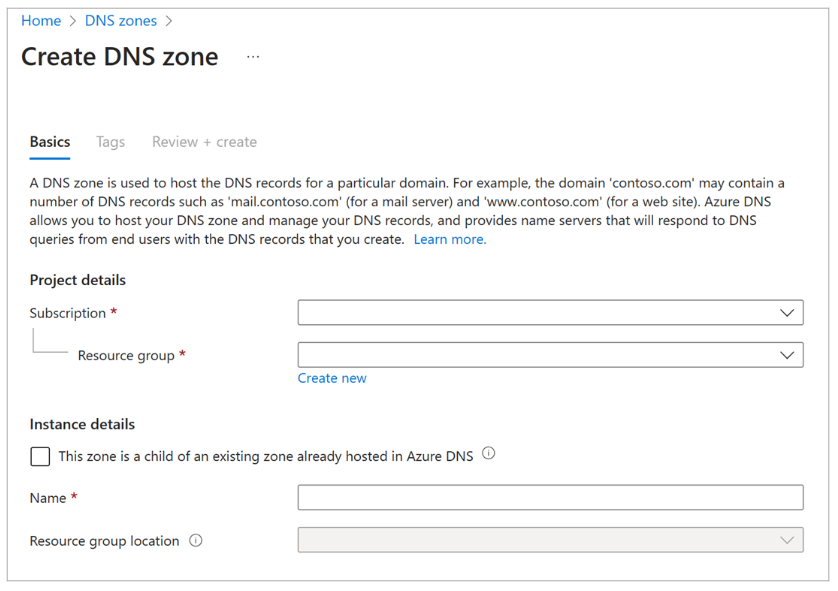
To host the domain using Azure DNS, first create a DNS zone to store all DNS records.
Provide the following:
- Subscription: Select the Azure subscription.
- Resource Group: Name for managing the domain. Create a new one if needed.
- Name: The domain name (e.g.,
wideworldimports.com). - Resource group location: This follows the resource group location.
Step 2: Get Azure DNS name server details
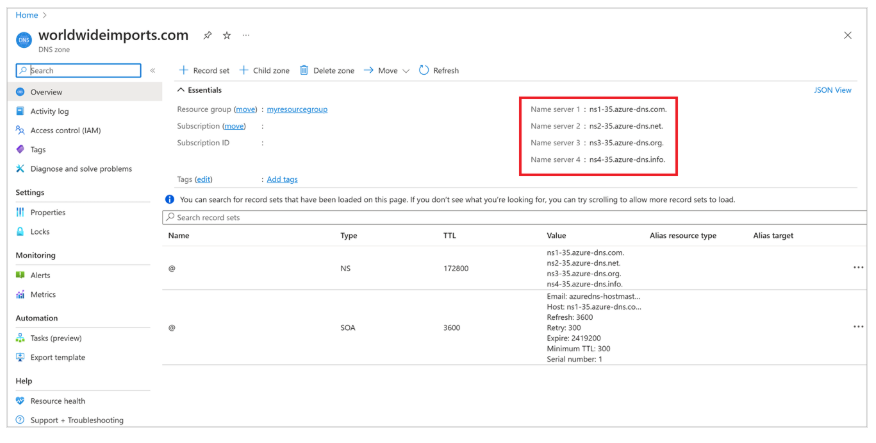
Once the DNS zone is created, retrieve the NS (name server) record details. Use these to update your domain registrar settings to delegate to Azure DNS.
Step 3: Update the registrar's DNS settings
Log in to your domain registrar and edit the NS records. Replace them with the Azure DNS name server details.
This is known as domain delegation. You must use all four Azure DNS name servers provided.
Step 4: Verify domain name delegation
Next, verify that the domain now points to the Azure DNS zone.
This may take a few minutes or longer. Use tools like nslookup to check the SOA record:
nslookup -type=SOA wideworldimports.com
The SOA record is created automatically when the Azure DNS zone is configured and is used by other DNS servers to locate your domain.
Step 5: Configure custom DNS settings
Suppose your domain is wideworldimports.com. When accessed in a browser, it should direct users to your site.
To map additional web servers or load balancers, add A or CNAME records.
A Record
For A records, provide:
- Name: e.g.,
webserver1. - Type: A
- TTL: Time-to-live in seconds (e.g.,
1). - IP Address: Target IP address.
CNAME Record
CNAME is an alias pointing to an A record. Use CNAME if you have a different domain pointing to the same resource.
Example CNAME in the wideworldimports.com zone:
- Name:
www - TTL:
600seconds - Type: CNAME
You can also create a CNAME for an Azure web function.
Configure a Private DNS Zone
Private DNS zones are not visible on the internet and don’t require a domain registrar. They map DNS names to VMs within Azure VNets.
Step 1: Create a private DNS zone
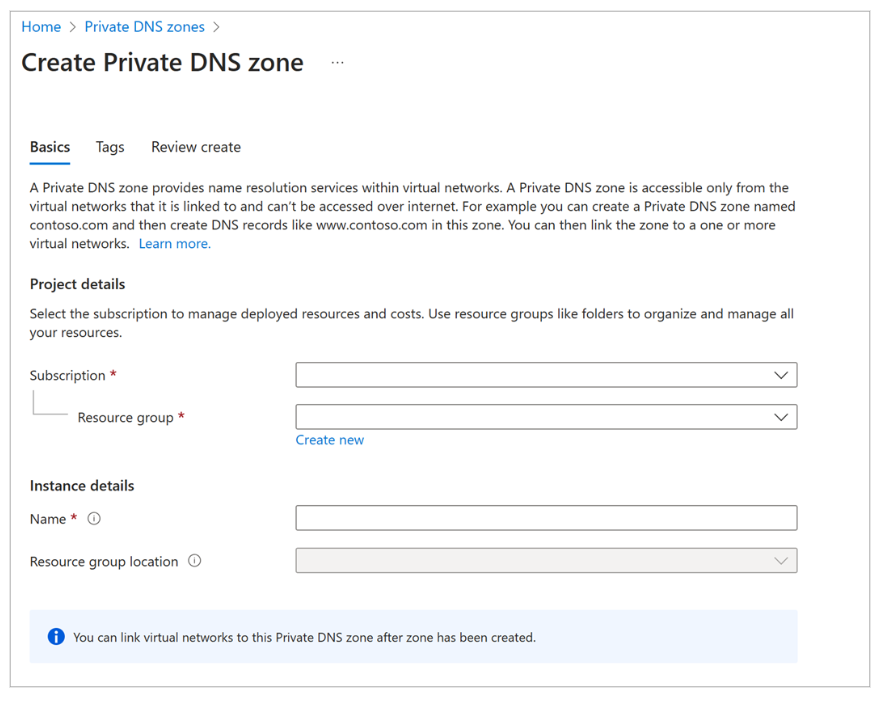
In Azure Portal, search for private DNS zones. When creating the zone, enter the resource group and name (e.g., private.wideworldimports.com).
Step 2: Identify the virtual network
Assuming you have a VM and a VNet, identify which VNet should resolve DNS names. You'll need the VNet name to link it to the private zone.
Step 3: Link the VNet to the private DNS zone
To connect the zone to a VNet, create a virtual network link.
In the portal, open the private zone and select Virtual network links.
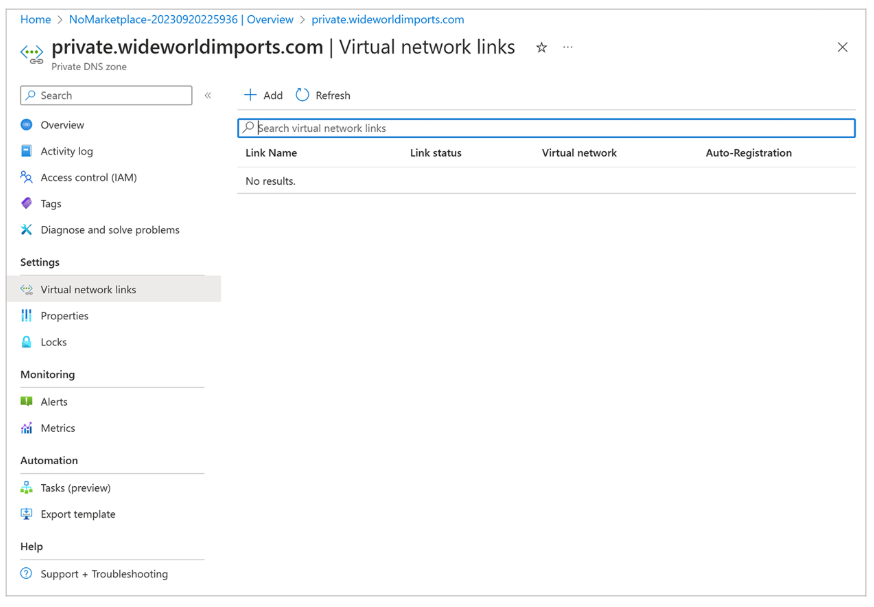
Click Add and select the VNet to link.
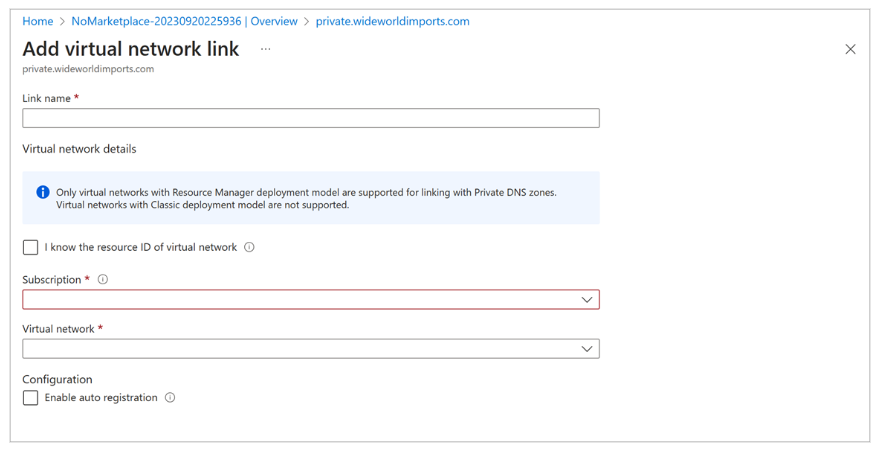
Create one link for each VNet that needs private DNS resolution.
Dynamically Resolve Resource Names Using Alias Records
What is a Domain Apex?
A domain apex is the top-level of a domain, such as wideworldimports.com. Also known as the zone apex or root apex. The @ symbol is often used to represent this in DNS zones.
The NS and SOA records are automatically created at the apex when the zone is created.
CNAME records are not supported at the domain apex for Azure Traffic Manager or CDN endpoints. However, alias records are supported.
What is an Alias Record?
Alias records allow domain apex to point to Azure resources from within a DNS zone. No complex redirection logic is needed. Alias records can also route traffic through Traffic Manager.
Azure alias records can target:
- Traffic Manager profiles
- Azure CDN endpoints
- Public IP addresses
- Azure Front Door profiles
Alias records automatically track the target resource's lifecycle, applying updates as needed. They also support apps behind a load balancer on the domain apex.
Supported DNS record types for alias record sets:
A: IPv4 mappingAAAA: IPv6 mappingCNAME: Domain alias
Benefits of Alias Records
Alias records provide several benefits:
- Avoid orphaned DNS records: Changes to the Azure resource are reflected in DNS.
- Auto-update when IP changes: Keeps DNS current if the service IP changes.
- Support load-balanced apps at domain apex: Enables apex domain routing via Traffic Manager.
- Point to Azure CDN endpoints: Reference Azure CDN directly from DNS.
With alias records, the apex domain (wideworldimports.com) can point to a load balancer. This creates a link to the Azure resource, not a static IP. If the IP changes, the domain still works.