Reset Password Using Self-Service Password Reset (SSPR) in Microsoft Entra
What is Self-Service Password Reset (SSPR)
Scenario
As an IT administrator in a large retail organization, your goal is to reduce high help desk costs due to numerous password reset requests. SSPR allows users to reset their own passwords without administrator assistance, saving time and improving productivity.
Why Use SSPR?
- Users can reset their own passwords if forgotten or expired.
- Reduces help desk workload.
- Improves user productivity.
- Supports Azure, Microsoft 365, and other applications using Microsoft Entra ID.
How SSPR Works
- User accesses the password reset portal or clicks "Can't access your account".
- Localization: The page is displayed in the language based on browser settings.
- Verification: Enter username and pass CAPTCHA.
- Authentication: Verify identity using selected method(s).
- Password Reset: Enter a new password.
- Notification: System sends a reset confirmation to the user's email.
Supported Authentication Methods
| Method | Registration Process | Authentication Process |
|---|---|---|
| Mobile App Notification | Register in Microsoft Authenticator app | Approve and verify notification |
| Mobile App Code | Same as above | Enter code from the app |
| Provide external email address | Enter code from email | |
| Mobile Phone | Provide mobile number | Receive code via SMS or call |
| Office Phone | Provide non-mobile number | Receive a call and press # |
| Security Questions | Choose and save answers | Answer questions during reset |
Note: Phone call option is not available for trial organizations.
Minimum Required Methods
- Users must configure 1 or 2 methods at minimum.
- For example, if 4 methods are available: app code, email, office phone, and security questions → user can select 2.
- For security questions, you can also configure:
- Minimum number of questions during registration.
- Minimum number of correct answers during reset.
Recommended Practices
- Use 2 or more methods.
- Prioritize mobile app as the primary method.
- Enable email or office phone for users without mobile devices.
- Avoid SMS, as it is vulnerable to manipulation.
- Use security questions only when combined with another method.
Administrator Accounts
- Must use two authentication methods.
- Security questions are not allowed.
Notification Settings
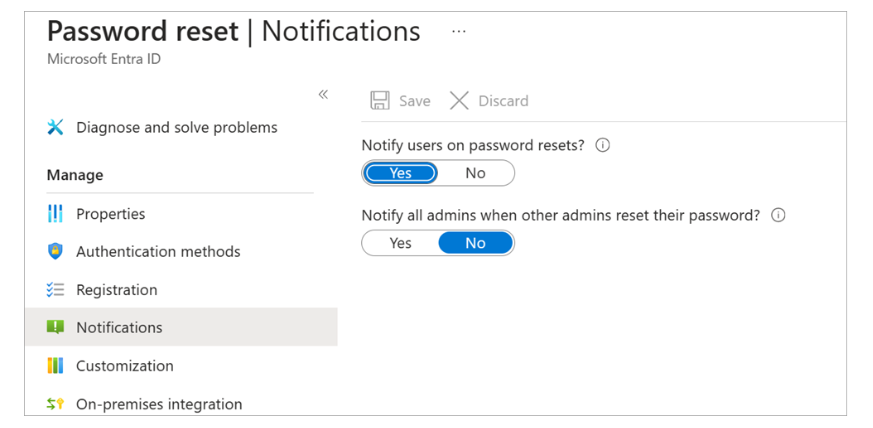
- Notify users when they reset their own password.
- Notify all admins when an admin resets another admin's password.
Licensing Requirements
- SSPR is available with Microsoft Entra ID Premium P1 and P2, and Microsoft 365 Apps for Business.
- All signed-in users can change their passwords.
- P1/P2 license is required for resets without signing in (forgotten or expired password).
SSPR Implementation Options
- Microsoft Entra Connect: For on-premises Active Directory users.
- Cloud Sync:
- For newly created domains (e.g., due to a merger).
- More reliable as it doesn’t rely on a single instance.
Implementing SSPR in Microsoft Entra
Prerequisites
Before configuring SSPR, you need:
- A Microsoft Entra organization: Must have an active P1 or P2 trial license.
- A Microsoft Entra account with the Authentication Policy Administrator role: You'll use this to configure SSPR.
- A non-administrative user account: Used to test SSPR. This account must not be an administrator,
as Microsoft Entra enforces stricter requirements for admin accounts. All user accounts must have valid licenses to use SSPR. - A Security Group for testing configuration: The non-admin test account must be a member.
You'll use this group to limit who has access to SSPR during initial rollout.
SSPR Activation Scope
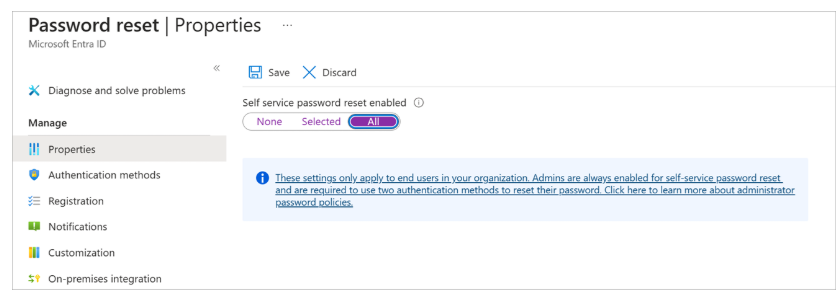
There are three settings for the "Self-service password reset enabled" property:
-
None:
No users in the Microsoft Entra organization can use SSPR.
(This is the default value.) -
Selected:
Only members of a specified security group can use SSPR.
Use this option to enable SSPR for a targeted group during testing.
Change to All when ready for full implementation. -
All:
All users in the Microsoft Entra organization can use SSPR.
SSPR Configuration
Here are the high-level steps to configure Self-Service Password Reset (SSPR):
-
Open Azure Portal
Go to Azure Portal, then navigate to: Microsoft Entra ID > Manage > Password reset. -
Properties
- Enable SSPR.
- Choose whether to enable it for all users or a specific group.
- To enable for specific users, specify a security group. Only members can use SSPR.
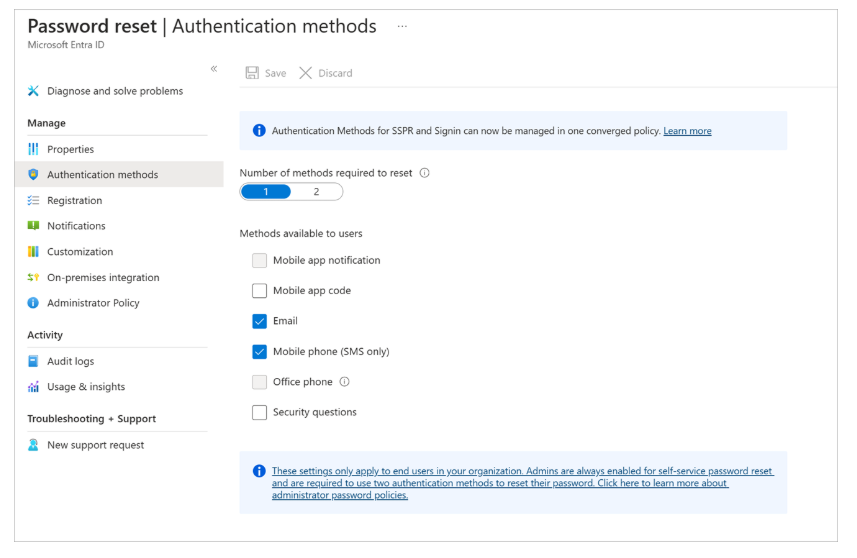
- Authentication Methods
Decide if you require one or two methods for authentication.
Select which methods users can choose from.
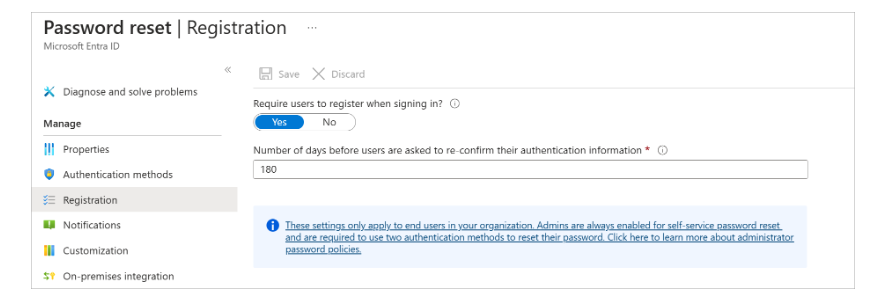
- Registration
Decide whether users are required to register for SSPR at their next login.
Set how often users must reconfirm their authentication info.
- Notifications
Choose whether to notify users and administrators each time a password reset occurs.
- Customization
Provide an email address or URL where users can get help if they encounter issues.

SSPR allows users to reset their passwords independently, reducing IT workload and improving productivity.
Tip: Use your company logo on the login page to reassure users they are in the right place to reset their password.