Azure Storage Services
Azure Storage Accounts
Azure Storage Account provides a unique namespace for your Azure Storage data, accessible globally via HTTP or HTTPS. Data in this account is secure, highly available, durable, and very flexible.
Types of Storage Accounts and Redundancy Options
When creating a storage account, you can choose the account type that determines the storage services, redundancy options, and use cases.
Redundancy Options:
-
Locally Redundant Storage (LRS):
Stores three copies of data within a single Azure region. -
Zone-Redundant Storage (ZRS):
Stores data across multiple zones within a single region. -
Geo-Redundant Storage (GRS):
Stores data in two different Azure regions (primary and secondary). -
Read-Access Geo-Redundant Storage (RA-GRS):
Same as GRS but allows read access to the secondary region. -
Geo-Zone-Redundant Storage (GZRS):
Combination of ZRS and GRS for maximum durability. -
Read-Access Geo-Zone-Redundant Storage (RA-GZRS):
GZRS with read access to the secondary region.
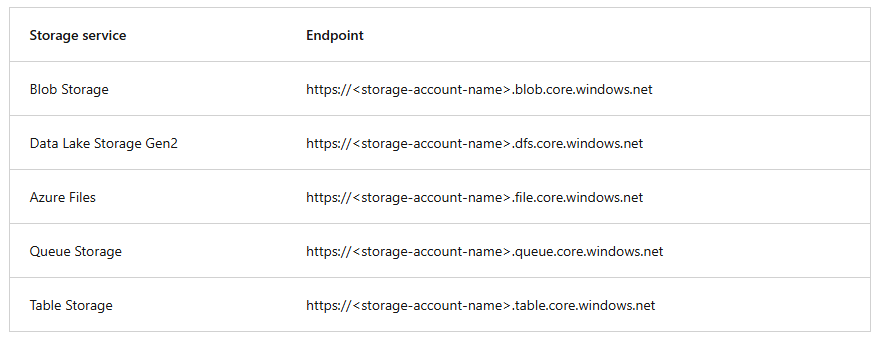
Storage Account Endpoints
Every Azure Storage Account has a unique namespace. Account names must:
- Be 3-24 characters long
- Contain only lowercase letters and numbers
- Be unique across Azure
Azure Storage Redundancy
Azure Storage always keeps multiple copies of data to protect against hardware failures, network issues, power outages, and natural disasters. Redundancy ensures data availability and durability even during failures.
1. Choosing Redundancy Options
When selecting redundancy options, consider:
- How data is replicated within the primary region.
- Whether data is replicated to a geographically distant secondary region.
- Whether the application requires read access to data in the secondary region if the primary is unavailable.
2. Redundancy in the Primary Region
Every Azure Storage account automatically stores three copies of data within the primary region.
a. Locally Redundant Storage (LRS)
- Stores 3 copies of data in a single data center in the primary region.
- Durability of 99.999999999% (11 nines) per year.
- Lowest cost but vulnerable to disasters affecting the entire data center.
b. Zone-Redundant Storage (ZRS)
- Stores 3 copies of data across 3 availability zones in the primary region.
- Durability of 99.9999999999% (12 nines) per year.
- More resilient than LRS, remains available even if one zone fails.
- Recommended for applications requiring high availability.
3. Redundancy in the Secondary Region
For higher durability, data can be replicated to a secondary region hundreds of miles from the primary.
a. Geo-Redundant Storage (GRS)
- Stores 3 copies of data in the primary region (LRS) and asynchronously replicates to the secondary region (LRS).
- Durability of 99.99999999999999% (16 nines) per year.
- Secondary region is only accessible after failover.
b. Geo-Zone-Redundant Storage (GZRS)
- Combines ZRS in the primary region with LRS replication in the secondary region.
- Provides high availability plus protection against regional disasters.
- Suitable for apps requiring maximum consistency, durability, and performance.
4. Read Access to Secondary Region
By default, data in the secondary region cannot be read or written until failover occurs.
- Read-Access Geo-Redundant Storage (RA-GRS) → Enables read access to data in the secondary region.
- Read-Access Geo-Zone-Redundant Storage (RA-GZRS) → Same as RA-GRS but uses GZRS.
Important Note:
Because replication to the secondary region is asynchronous, there is a risk of data loss if the primary region fails before replication completes.
- LRS → Cheapest, protects only against hardware failure.
- ZRS → Protects against zone failure within the primary region.
- GRS & GZRS → Protect against regional disasters via secondary region replication.
- RA-GRS & RA-GZRS → Allow read access to secondary region before failover.
The best option depends on cost, availability, and Business Continuity and Disaster Recovery (BCDR) needs.
Azure Storage Services
The Azure Storage platform includes the following data services:
- Azure Blobs: Highly flexible object storage for text and binary data. Also supports big data analytics via Data Lake Storage Gen2.
- Azure Files: Managed file shares for cloud or on-premises deployments.
- Azure Queues: Message storage for reliable communication between application components.
- Azure Disks: Block storage volumes for Azure VMs.
- Azure Tables: NoSQL table option for structured and non-relational data.
Benefits of Azure Storage
Azure Storage offers these advantages for application developers and IT professionals:
- Durable and highly available: Redundancy ensures data safety despite temporary hardware failures.
Cross-data-center or cross-region replication is also available. - Secure: All data in Azure Storage accounts is encrypted. Users have detailed access control.
- Flexible: Designed to handle massive data growth.
- Fully managed: Microsoft handles hardware maintenance, updates, and critical repairs.
- Globally accessible: Data can be accessed worldwide via HTTP or HTTPS, supporting various programming languages such as
.NET, Java, Python, Node.js, etc.
Azure Blobs
Azure Blob Storage is a cloud-based object storage solution that can handle large amounts of data like text or binary data.
Main use cases for Blob Storage:
- Deliver images or documents directly to browsers.
- File storage for distributed access.
- Video and audio streaming.
- Backup, disaster recovery, and archival storage.
- Data storage for on-premises or Azure analytics.
Azure Blob Storage Tiers
Azure offers several storage tiers based on access frequency and retention duration:
- Hot: For frequently accessed data (e.g., website images).
- Cool: For infrequently accessed data (minimum 30 days).
- Cold: For rarely accessed data (minimum 90 days).
- Archive: For long-term storage (minimum 180 days).
Azure Files
Azure File Storage provides fully managed cloud file shares using SMB (Server Message Block) or NFS (Network File System) protocols.
Key benefits of Azure Files:
- Shared Access: Can replace local file shares without application compatibility changes.
- Fully managed: No need to handle hardware or OS maintenance.
- Scripting & Tools: Manage via Azure Portal, PowerShell, CLI, and Azure Storage Explorer.
- High durability: Built to remain available without interruption from local hardware failures.
Azure Queues
Azure Queue Storage is a message storage service supporting millions of messages.
- Used to asynchronously queue tasks.
- Each message can be up to 64 KB.
- Can integrate with Azure Functions to automatically execute tasks upon message receipt.
Azure Disks
Azure Disk Storage is Azure-managed block storage volumes for Azure VMs. Advantages over physical disks include higher durability and better availability.
Azure Tables
Azure Table Storage is NoSQL storage for large volumes of structured data. It supports authentication both inside and outside Azure, ideal for hybrid or multicloud solutions.
Azure Data Migration Options
1. Azure Migrate
Azure Migrate is a service that helps migrate from on-premises environments to Azure. It serves as a control center to assess and manage on-premises data center migration to the cloud.
- Migration Platform: One portal to start, run, and track migration processes.
- Various Migration Tools: Includes server assessment and migration, integrated with other Azure services.
- Infrastructure Assessment and Migration: Enables evaluation and movement of servers and databases to Azure.
Integrated Tools in Azure Migrate:
- Azure Migrate: Discovery & Assessment – Evaluates readiness of physical or virtual servers (VMware, Hyper-V) before migration.
- Azure Migrate: Server Migration – Migrates on-premises VMs (VMware, Hyper-V, physical servers) to Azure.
- Data Migration Assistant – Tool to evaluate and identify issues before SQL Server migration.
- Azure Database Migration Service – Moves SQL Server databases to Azure SQL Database or Azure SQL Managed Instance.
- Azure App Service Migration Assistant – Assesses and migrates .NET and PHP applications to Azure App Service.
2. Azure Data Box
Azure Data Box is a physical migration service that enables fast, secure transfer of large data volumes to Azure.
- Storage capacity up to 80 TB per device.
- Offline transfer to avoid network or internet speed limitations.
- Physically shipped and returned, with encryption and high security protections.
Use cases for Azure Data Box:
- One-time migration – Moving large datasets to Azure, like media libraries or historical databases for analytics.
- Large initial transfer – Start big data transfer with Data Box, then continue with network transfer.
- Periodic shipments – For large recurring data, e.g., from research centers or manufacturing.
- Disaster recovery – Quickly restore data from Azure to on-premises in emergencies.
- Security requirements – Exporting data from Azure due to government or security regulations.
- Reverse migration or cloud-to-cloud – Export data from Azure to local storage or another cloud provider.
After data is uploaded to Azure, the Data Box device is wiped following NIST 800-88r1 security standards to ensure user data safety.
Azure offers two main data migration approaches:
- Azure Migrate for online, real-time migration with assessment and automated moves.
- Azure Data Box for large-scale offline data transfer with physical devices.
Azure File Movement Options
Besides large-scale migration using Azure Migrate and Azure Data Box, Azure provides several tools for moving or interacting with individual files or small batches of files, such as:
1. AzCopy
- Command-line tool for copying blobs or files to/from Azure storage accounts.
- Supports upload, download, copy, and sync operations.
- Supports transfers between storage accounts and across clouds.
Note: Synchronization is one-way only — AzCopy copies from source to destination without two-way metadata or timestamp updates.
2. Azure Storage Explorer
- GUI application for managing files and blobs in Azure Storage accounts.
- Available on Windows, macOS, and Linux.
- Uses AzCopy for file transfers.
- Allows uploading, downloading, or moving files between storage accounts.
3. Azure File Sync
- Enables centralizing file shares in Azure Files while maintaining Windows File Server compatibility and flexibility.
- Automatic bi-directional sync between on-premises servers and Azure Files.
- Supports Windows Server protocols like SMB, NFS, and FTPS.
- Allows cloud tiering, storing frequently accessed files locally and less-used files in the cloud.
- If the local server fails, data can be quickly restored by reinstalling Azure File Sync on a new server in the same data center.
- AzCopy is suitable for users comfortable with CLI commands and needing fast file transfers.
- Azure Storage Explorer is ideal for users preferring a graphical interface.
- Azure File Sync is very useful for organizations wanting to seamlessly connect local file servers with Azure Files automatically.