Azure Identity, Access, and Security
Azure Directory Services
Microsoft Entra ID is a directory service that allows users to sign in and access both Microsoft Cloud applications and custom cloud applications they develop themselves. Additionally, this service helps organizations manage their on-premises Active Directory.
Microsoft Entra ID: Microsoft’s Cloud Directory Service
1. What is Microsoft Entra ID?
Microsoft Entra ID is a cloud-based identity and access management service from Microsoft.
It is used to control identity accounts, while Microsoft is responsible for the global availability of the service.
Key benefits:
- Monitors suspicious login attempts at no additional cost.
- Detects access from unknown locations or devices.
- Can be integrated with on-premises Active Directory.
2. Who Uses Microsoft Entra ID?
- IT Administrators – Control user access to applications & resources according to business policies.
- Application Developers – Use Entra ID to add Single Sign-On (SSO) and authentication to their apps.
- End Users – Manage accounts, change passwords, or reset passwords independently.
- Online Service Customers – Microsoft 365, Office 365, Azure, and Dynamics CRM Online users already use Entra ID for authentication.
Key Features of Microsoft Entra ID
1. Authentication & Security
- Verifies identities before accessing applications & resources.
- Supports multifactor authentication (MFA) for extra security.
- Smart Lockout – Protects accounts from suspicious login attempts.
2. Single Sign-On (SSO)
- Enables users to access multiple applications with one username and password.
- Simplifies access management: if an employee leaves, access can be quickly revoked.
3. Application Management
- Microsoft Entra ID manages both cloud and on-premises applications.
- Supports Application Proxy, SaaS Apps, and My Apps Portal.
4. Device Management
- Supports device registration alongside user accounts.
- With Microsoft Intune, devices can be managed and protected from unauthorized access.
- Device-based access policies can be enforced (Conditional Access).
Integration with On-Premises Active Directory
If an organization uses local Active Directory (AD), Microsoft Entra ID can be connected with AD using Microsoft Entra Connect.
Advantages of AD Integration with Microsoft Entra ID:
- User identities remain consistent between cloud and on-premises.
- Supports SSO and multifactor authentication in both environments.
- Reduces complexity by avoiding managing two separate identities.
Microsoft Entra Domain Services
This service provides managed domain services such as:
- Domain Join
- Group Policy
- LDAP Authentication
- Kerberos & NTLM Authentication
Microsoft Entra Domain Services enable running legacy applications in the cloud without maintaining your own domain controllers (DCs).
Main benefits:
- Lift & shift legacy applications to the cloud without changing authentication.
- Integrated with Microsoft Entra ID, so users can log in using their existing credentials.
- Azure automatically manages and secures domain controllers.
- Microsoft Entra ID can be used standalone or combined with on-premises Active Directory for a more consistent experience.
- Microsoft Entra Domain Services is a solution for running legacy apps in the cloud without managing domain controllers.
- Microsoft Entra ID offers Single Sign-On, device management, and app integration to simplify access management in organizations.
- Microsoft Entra ID is a cloud-based identity management solution to authenticate users and devices.
- Integrates with local Active Directory for consistent identity experiences across cloud and on-premises.
- Supports strong security with MFA, SSO, and Conditional Access.
- Microsoft Entra Domain Services help run legacy apps in the cloud without managing domain controllers.
Azure Authentication Methods
Azure supports various authentication methods such as passwords, Single Sign-On (SSO), multifactor authentication (MFA), and passwordless authentication.
- SSO simplifies access by using a single identity across multiple applications, reducing the number of passwords to remember and manage.
- MFA improves security by adding additional authentication factors, like OTP codes or biometrics, protecting against credential theft.
- Passwordless authentication offers security and convenience by replacing passwords with more secure methods like biometrics or physical devices.
Below is a comparison of security and convenience levels for various authentication methods:
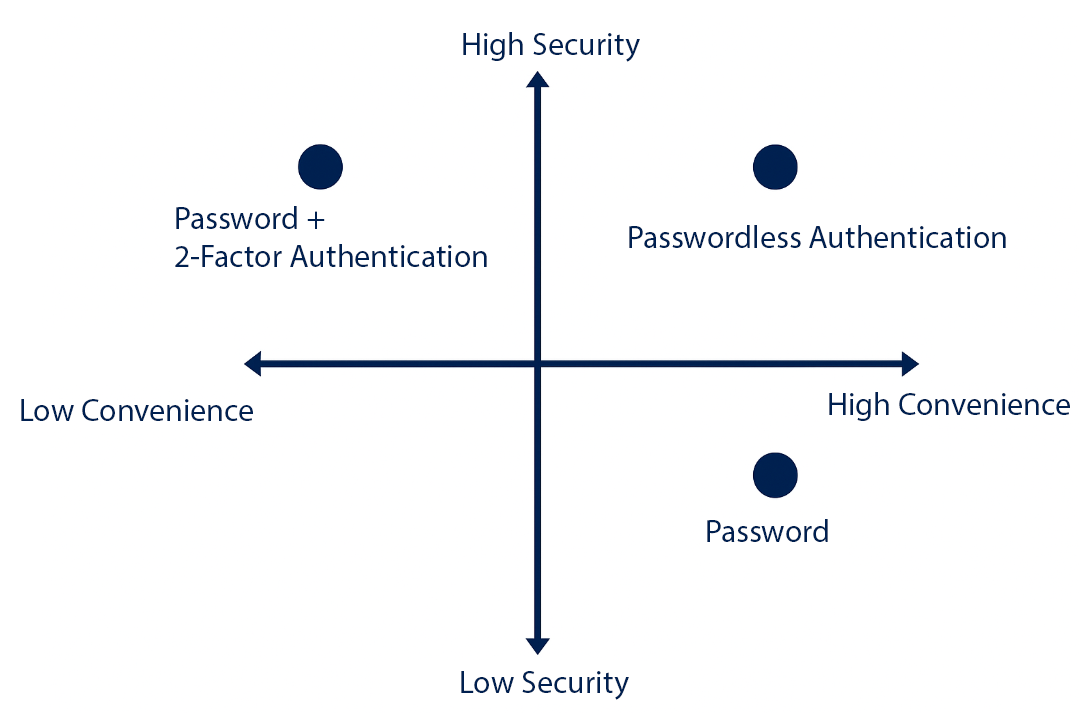
Azure offers three passwordless authentication options:
- Windows Hello for Business – Biometric or PIN-based authentication on Windows devices.
- Microsoft Authenticator App – Uses a phone as a passwordless authentication method.
- FIDO2 Security Keys – Physical security keys for stronger passwordless authentication.
Azure External Identities
External identities are individuals, devices, or services outside your organization within Azure Cloud.
Microsoft Entra External ID encompasses all ways to securely interact with external users.
If you want to collaborate with:
- Partners, distributors, suppliers, or vendors → Share resources and define internal access to external organizations.
- Customers (consumer apps) → Manage customer identity experiences more easily.
How Are External Identities Different from Single Sign-On (SSO)?
- External Identities allow users to bring their own identity!
- They can use corporate, government, or social identities (Google, Facebook).
- External identity providers manage their identities — you only manage access to applications via Microsoft Entra ID or Azure AD B2C.
Key Features of External Identities
1. Business-to-Business (B2B) Collaboration
- External users sign in with their chosen identity (Microsoft or other SaaS accounts).
- B2B users appear in your directory as guest users.
2. B2B Direct Connect
- Two-way trust relationship with other Microsoft Entra organizations.
- Currently supports Microsoft Teams Shared Channels → External users join from their own Teams accounts.
- Users do not appear in directory but can be monitored from Teams Admin Center.
3. Azure AD Business-to-Customer (B2C)
- For SaaS or custom apps aimed at customers.
- Azure AD B2C manages user identity and access for those applications.
- Does not support Microsoft apps, only custom or third-party apps.
Benefits of Using Microsoft Entra ID for External Identities
- Easy collaboration with Microsoft Entra B2B features.
- Guest user administration → Guests can be invited by admins or users.
- Guest access management with Access Reviews → Ensures only needed users keep access.
- Better security → Guest access can be automatically revoked when no longer required.
- Microsoft Entra ID enables organizations to securely collaborate with business partners and customers without sacrificing digital identity control and security.
Azure Role-Based Access Control
Description of Azure Role-Based Access Control (RBAC)
How do you control IT and engineering team access to cloud resources?
- Principle of "least privilege" → Only give the access needed to perform tasks.
- Example: If only read access is needed to a storage blob, do not grant write or other resource access.
Solution: Azure Role-Based Access Control (Azure RBAC) allows role-based access management without assigning permissions individually.
How Azure RBAC Works
1. Role-Based Access Management
- Azure provides built-in roles for common resource access.
- Custom roles can be created based on organizational needs.
- When someone is added to an Azure RBAC group, they immediately get the permissions related to that role.
2. RBAC Applied on “Scopes”
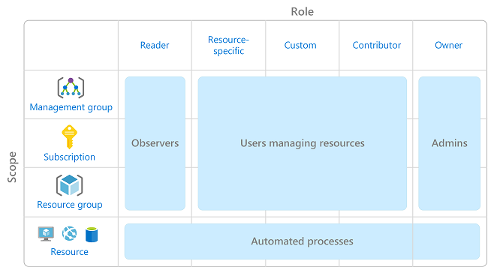
RBAC is applied on scopes such as:
- Management Group
- Subscription
- Resource Group
- Single Resource
- RBAC is hierarchical → Permissions at higher levels are inherited by lower levels.
- If someone is assigned Owner role at Management Group level, they can manage all subscriptions within it.
- If a user group is assigned Reader role at Subscription level, they can view all resources in that subscription.
3. Enforcement of Azure RBAC
RBAC is enforced on all Azure resource actions passing through Azure Resource Manager.
Resource Manager is accessible via:
- Azure Portal
- Azure CLI / PowerShell / Cloud Shell
RBAC does not control application or data security → That must be handled inside the application itself.
4. "Allow" Model in RBAC
- Azure RBAC uses an "allow" model → If you are assigned a role, you are permitted to perform actions defined by that role.
- Permissions are cumulative → If one role grants read access and another grants write, the user has both.
Zero Trust Model
Zero Trust is a security model that assumes the worst-case scenario and protects resources accordingly.
This model assumes breaches have already occurred and verifies every access request as if it originates from an untrusted network.
Microsoft recommends the Zero Trust security model, based on these principles:
- Explicit Verification – Always authenticate and authorize based on all available data.
- Use Least Privilege Access – Limit user access with Just-In-Time (JIT) and Just-Enough-Access (JEA), using risk-based adaptive policies and data protection.
- Assume Breach – Minimize attack impact with segmented access, end-to-end encryption verification, and analytics to improve visibility and threat detection.
Azure Defense-in-Depth
Defense-in-Depth is a security strategy that uses layers of protection to prevent unauthorized data access.
If one layer is breached, other layers continue to block the attack.
Layers of Defense-in-Depth
1. Physical Security
- Protects physical access to data centers and hardware.
- Prevents theft or tampering of hardware.
2. Identity & Access
- Controls infrastructure access with multifactor authentication (MFA) and Single Sign-On (SSO).
- Monitors and logs all changes or suspicious activities.
3. Perimeter
- Uses DDoS protection to filter large-scale attacks.
- Perimeter firewalls detect and alert on network attacks.
4. Network
- Limits communication between resources to prevent attack spread.
- Deny by Default principle blocks unnecessary access.
5. Compute
- Secures access to virtual machines (VMs).
- Ensures systems are updated and malware-protected.
6. Application
- Develops secure, vulnerability-free applications.
- Stores sensitive data in secure storage.
7. Data
- Controls access to customer and business data.
- Uses encryption and security policies compliant with regulations.
- Does not rely on a single security layer.
- Slows down attacks and provides time to respond.
- Ensures data and systems stay secure even if one layer is compromised.
Microsoft Defender for Cloud
Microsoft Defender for Cloud is a monitoring tool for security management and threat protection.
It monitors cloud, on-premises, hybrid, and multicloud environments to provide guidance and alerts to enhance security.
Security Wherever You Operate
As a native Azure service, Defender for Cloud automatically monitors many Azure services without extra deployment.
For on-premises data centers or other cloud environments, Defender for Cloud installs Log Analytics agents to collect security data.
Integrated Protection in Azure
Defender for Cloud helps detect threats across Azure services such as:
- Azure PaaS Services (e.g., App Service, Azure SQL, Azure Storage)
- Azure Data Services (analyzes data in Azure SQL & Storage)
- Networking (prevents brute-force attacks with Just-in-Time VM access)
- Hybrid & Multicloud Protection
Besides Azure, Defender for Cloud can be extended to:
- Hybrid environments (protecting non-Azure servers with Azure Arc)
- Other clouds (e.g., AWS & GCP with CSPM features & specialized protection)