Azure Files Configuration
Comparing Storage for File Shares and Blob Data
Azure Files provides a fully managed file share service in the cloud, allowing access via SMB, NFS, and HTTP protocols. Azure Blob Storage, on the other hand, is used to store unstructured data in blobs with large-scale access using REST APIs.
Advantages of Azure Files
- Serverless deployment: No infrastructure like VMs or updates required.
- Nearly unlimited storage: Can store up to 100 TiB per file share, with files up to 4 TiB.
- Data encryption: Data is encrypted at rest and in transit.
- Global access: Accessible from Windows, Linux, and macOS devices with internet connectivity.
- Easy integration: Supports access control using Microsoft Entra identities or AD DS.
- Backup and versioning: Supports snapshots and backup via Azure Backup.
When to Use Azure Files?
- To replace or supplement traditional local file servers or NAS devices.
- For applications requiring file share access from multiple platforms (Windows, Linux, macOS).
- Using Azure File Sync for replication between cloud and on-premises.
Advantages of Azure Blob Storage
- Unstructured data storage: Suitable for applications needing large-scale storage and random data access.
- Access via containers: Data is stored in containers and accessed through REST API.
- Ideal for streaming and random access: Supports apps requiring large-scale storage with random or streaming access.
When to Use Azure Blob Storage?
- For applications needing streaming or random data access.
- For large data storage needs accessible from anywhere via API.
Azure Files is more suitable for applications relying on file shares,
while Azure Blob Storage is more flexible for large data storage and apps needing random or streaming access.
Managing Azure File Shares
Azure Files offers two industry-standard file system protocols for mounting Azure file shares: Server Message Block (SMB) and Network File System (NFS). Azure file shares do not support both SMB and NFS protocols on the same file share, though users can create SMB and NFS Azure file shares in the same storage account.
Types of Azure File Shares
Azure Files supports two storage tiers: premium and standard. Standard Azure file shares are created in general-purpose v2 (GPv2) storage accounts, while premium file shares are created in FileStorage accounts. Below is a description of both tiers:
| Storage Tier | Description |
|---|---|
| Premium | Stores data on solid-state drives (SSDs), available only in FileStorage accounts. Provides consistent high performance and low latency, with LRS and ZRS redundancy in some regions. Not available in all Azure regions. |
| Standard | Stores data on hard disk drives (HDDs), created in general-purpose v2 (GPv2) storage accounts. Suitable for workloads like general file shares and development/testing environments. Standard shares are available with LRS, ZRS, GRS, and GZRS in all Azure regions. |
Authentication Types
There are three main authentication methods supported by Azure Files:
| Authentication Method | Description |
|---|---|
| Identity-based authentication via SMB | Provides seamless single sign-on (SSO) experience when accessing Azure file shares like local file shares. |
| Access key | An older, less flexible option. Azure storage accounts have two access keys used for requests to the storage account, including Azure Files. Access keys are static and grant full control over Azure Files. Keys should not be shared as they bypass access control restrictions. |
| Shared Access Signature (SAS) token | SAS is a dynamically generated Uniform Resource Identifier (URI) based on storage account keys. SAS grants limited access rights to the storage account, including allowed permissions, start and expiry times, permitted IP addresses, and allowed protocols. Used for REST API access from code. |
Creating SMB Azure File Shares
Two important settings to note when creating and configuring SMB Azure file shares:
-
Open port 445: SMB communicates via TCP port 445. Ensure this port is open and not blocked by firewalls on client machines. If port 445 cannot be opened, users need a VPN or ExpressRoute connection from on-premises to Azure network, with Azure Files exposed via private endpoints.
-
Enable secure transfer: The "Secure transfer required" setting enhances storage account security by restricting requests to secure connections only. If users try to access using HTTP while "Secure transfer required" is enabled, the connection will be denied.
Mount SMB Azure File Share on Windows
Users can seamlessly access Azure file shares on Windows and Windows Server. Configure shares in the Azure portal, select the desired drive letter for mounting, and choose the authentication method. The Azure portal provides PowerShell commands to use once ready to work with the file share.
Mount SMB Azure File Share on Linux
Users can also access Azure file shares from Linux machines. From the virtual machine page, select Connect. Azure file shares can be mounted on Linux distributions using the CIFS kernel client. Mounting can be done on-demand with the mount command or persistently at boot by adding entries to /etc/fstab.
Creating Snapshots on File Shares
Azure Files provides the capability to create snapshots of file shares. A file share snapshot captures a read-only point-in-time copy of the data.
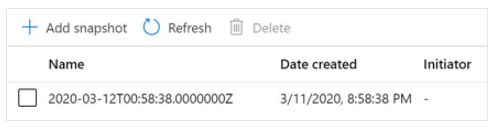
Things to Know About File Share Snapshots
- Snapshots are taken at the file share level, not per file.
- Snapshots are incremental, storing only changes since the last snapshot.
- Incremental snapshots save creation time and storage costs.
- Users only need to keep the latest snapshot to perform recovery.
- Snapshots can be taken for individual files, allowing recovery of specific files without restoring the entire share.
- Snapshots do not protect against accidental deletion of the file share. If a file share is deleted, all snapshots are deleted as well.
Considerations When Using Snapshots
| Benefit | Description |
|---|---|
| Protection against application errors and data corruption | Snapshots can be taken before deploying new code to applications. If new code causes damage or bugs, data can be restored to the previous version. |
| Protection against accidental deletion or modification | If a file is accidentally modified or deleted, snapshots enable recovery of previous file versions. |
| Supports backup and recovery processes | Periodic snapshots can be used as data backups for future audit needs or disaster recovery. |
- Azure Files snapshots are incremental and cost-effective.
- Snapshots support individual file recovery and help mitigate app errors, accidental deletions, and backup needs.
- Snapshots do not prevent entire file share deletion, so careful management is still necessary.
Soft Delete on Azure Files
Azure Files provides a soft delete feature for file shares. Soft delete allows users to recover deleted files and file shares.
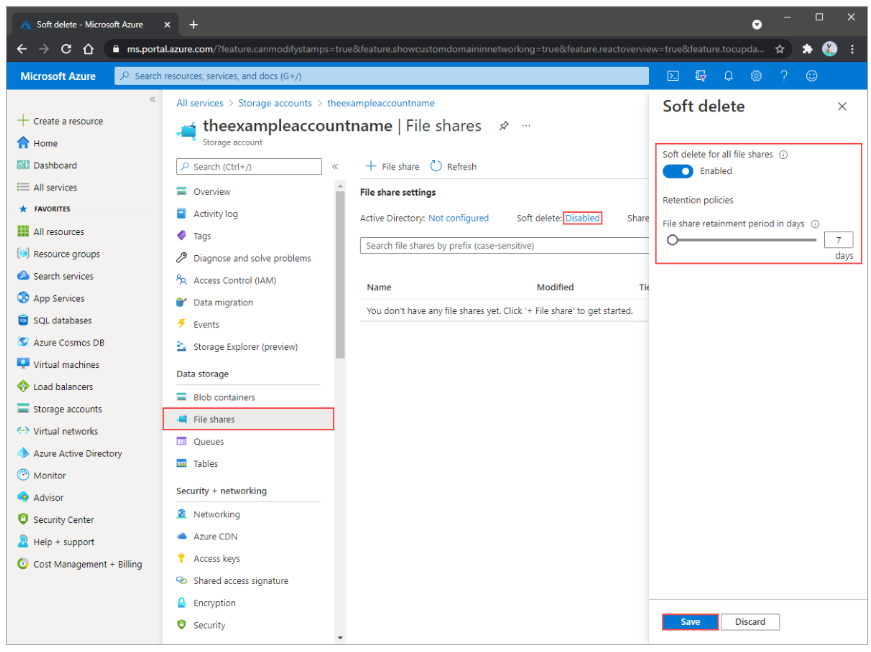
Things to Know About Soft Delete
- Soft delete is enabled at the file share level.
- When files are deleted, contents are marked as soft deleted instead of being permanently deleted immediately.
- Users can configure retention period, the duration deleted files are retained and available for recovery.
- Retention period can be set from 1 to 365 days.
- Soft delete can be enabled on new or existing file shares.
Considerations When Using Soft Delete
| Use Case | Description |
|---|---|
| Recovery from accidental data loss | Soft delete enables users to recover deleted or corrupted data easily. |
| Recovery after upgrade failure | If a system upgrade fails, users can revert data to previous state using soft delete. |
| Protection against ransomware | Soft delete allows recovery without paying ransom to attackers. |
| Long-term retention | Helps meet data storage requirements for a set duration. |
| Business continuity | Provides infrastructure resilience for critical workloads. |
- Soft delete allows recovery of deleted data for a configurable period.
- Useful for protection against data loss, cyberattacks, or upgrade errors.
- Offers flexible retention between 1 and 365 days, applicable to new or existing file shares.
Azure Storage Explorer
Azure Storage Explorer is a standalone app that makes it easy for users to work with Azure Storage data on Windows, macOS, and Linux.
With this app, users can access storage accounts from various accounts and Azure subscriptions.
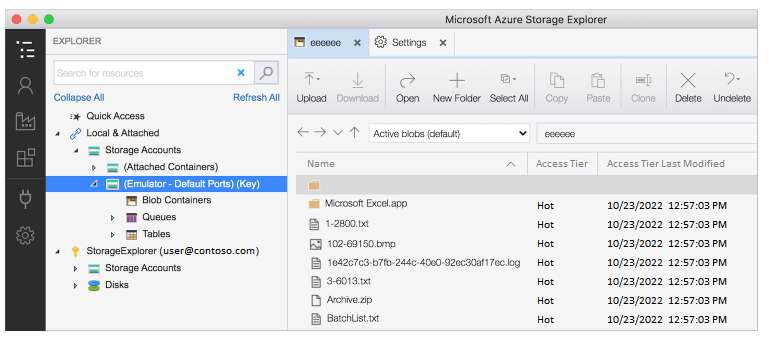
Things to Know About Azure Storage Explorer
- Requires management permissions (Azure Resource Manager) and data layer permissions for full resource access.
- Needs Microsoft Entra ID permissions to access storage accounts, containers, and data.
- Enables users to connect to multiple storage accounts, both personal and from other Azure subscriptions.
Supported Connections:
- Own storage accounts from Azure subscriptions.
- External storage accounts and services shared from other subscriptions.
- Local storage using Azure Storage Emulator.
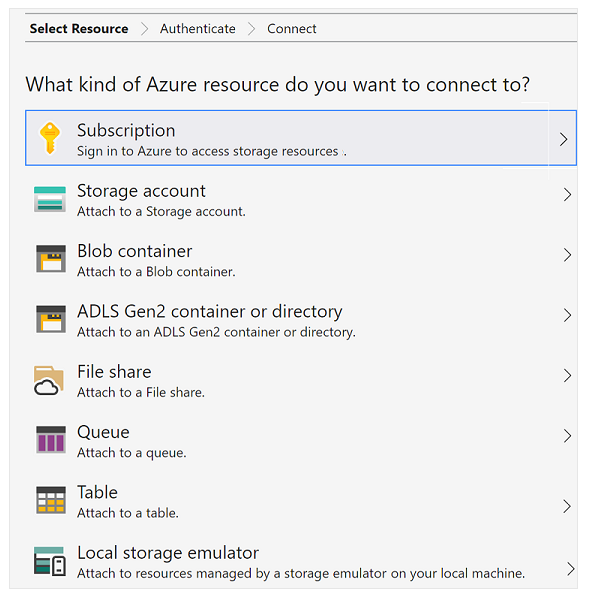
Considerations When Using Azure Storage Explorer
| Scenario | Description |
|---|---|
| Connect to Azure subscriptions | Manage storage resources owned by the subscription. |
| Work with local storage | Manage local storage using Azure Storage Emulator. |
| Link external storage | Manage storage resources from other subscriptions or Azure National clouds using account name, key, and endpoint. |
| Link accounts with SAS | Manage resources from other subscriptions using Shared Access Signature (SAS). |
| Link services with SAS | Manage specific services like blob containers, queues, or tables from other subscriptions via SAS. |
Linking to External Storage Accounts
Azure Storage Explorer allows users to link external storage accounts for easy sharing.
- To create a connection, users need:
- Storage account name
- Account key (key1) from the Azure portal
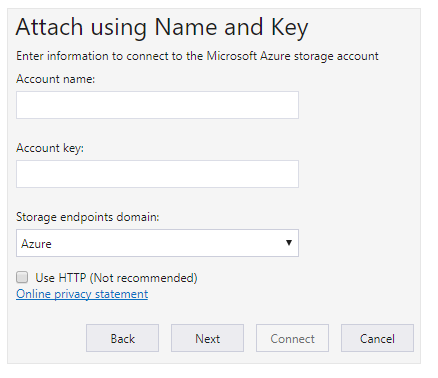
- For accounts in Azure National clouds, select "Other" in the Storage endpoints domain menu and enter your custom endpoint domain.
About Access Keys
- Access keys grant full access to the entire storage account.
- There are two access keys so users can maintain access with one key while rotating the other.
- Keep your access keys secure. It is recommended to regenerate keys regularly.
- After regeneration, update all apps and Azure resources using the key to maintain access.
- This action will not disrupt disk access from your virtual machines.
Using Azure File Sync
Azure File Sync allows users to cache multiple Azure File Shares on local Windows servers or cloud VMs. This service helps centralize organizational file shares in Azure Files while maintaining flexibility, performance, and compatibility like on-premises file servers.
Things to Know About Azure File Sync
- Azure File Sync transforms Windows Server into a fast cache for your Azure File Shares.
- You can use any protocol available on Windows Server, such as SMB, NFS, and FTPS, to access data locally.
- Supports multiple global caches across different locations.
Cloud Tiering
- Cloud tiering is an optional feature.
- Frequently accessed files are stored locally, while other files are moved to Azure Files.
- Moved files are replaced by pointers (reparse points) — URLs to the files in Azure.
- When users open tiered files, the data is automatically downloaded from Azure.
- Tiered files are marked with a gray icon and offline (O) file attribute.
Considerations When Using Azure File Sync
| Scenario | Description |
|---|---|
| Lift and Shift Applications | Migrate apps that need simultaneous access to data in Azure and on-premises. Supports write access to the same data from Windows Server and Azure Files. |
| Branch Office | Support branch offices with file backup using Azure File Sync. Simply connect new servers to Azure Storage. |
| Backup and Disaster Recovery (DR) | Azure Backup can back up on-premises data after Azure File Sync deployment. Instantly restore file metadata and data as needed during disasters. |
| File Archiving with Cloud Tiering | Keep only frequently accessed files on-premises. Use cloud tiering to move older data to Azure Files and save storage space. |
Azure File Sync is an ideal solution for organizations wanting to keep on-premises infrastructure
while integrating it with cloud flexibility. Features like cloud tiering, multi-location sync, and backup integration
make it a reliable tool to efficiently and securely manage files.