Azure Storage Security Configuration
Review Azure Storage Security Strategy
Azure Storage Security Strategy
Azure Storage offers various security features to protect data, including encryption, authentication, authorization, and access control.
Encryption
a. Encryption at Rest
- Uses Storage Service Encryption (SSE) with AES 256-bit.
- All data is automatically encrypted at no additional cost and with no performance impact.
b. Encryption in Transit
- Use HTTPS for communication between client and Azure.
- Enable "secure transfer" setting to enforce secure connections.
- SMB 3.0 is used for file transfers over SMB protocol.
c. Disk Encryption
- Azure Disk Encryption encrypts VM VHDs.
- BitLocker is used for Windows, dm-crypt for Linux.
- Keys are stored and managed via Azure Key Vault.
Authentication
- Supports Microsoft Entra ID and Role-Based Access Control (RBAC).
- Entra ID is used for authenticating users and applications.
- RBAC controls access to resource management operations.
Authorization
Authorization Strategies
| Strategy | Description |
|---|---|
| Microsoft Entra ID | Fine-grained role-based access control for users, groups, and apps. |
| Shared Key | Uses account access keys to generate encrypted signature strings. |
| Shared Access Signature | Delegates access with specific permissions and time constraints. |
| Anonymous Access | Optional, allows public read access to containers or blobs. |
Shared Access Signature (SAS)
- Grants delegated access to data objects.
- Configurable with specific permissions and expiration times.
Creating Shared Access Signatures (SAS)
What is a Shared Access Signature (SAS)?
A Shared Access Signature (SAS) is a URI (Uniform Resource Identifier) that grants limited access rights to Azure Storage resources.
SAS provides a secure way to share storage resources without sharing your account key.
Users can issue SAS tokens to clients who should not have full account access. By sharing a SAS URI, the user grants time-limited access to resources.
When to Use SAS?
SAS is commonly used in services where users upload and download their data to a storage account.
Two typical design approaches for user data storage accounts:
- Front-End Proxy Service

Clients upload/download data through a front-end proxy service that handles authentication.
- Advantage: Allows for rule validation.
- Challenge: Hard to scale for large data or high transaction volumes.
- Lightweight Service with SAS
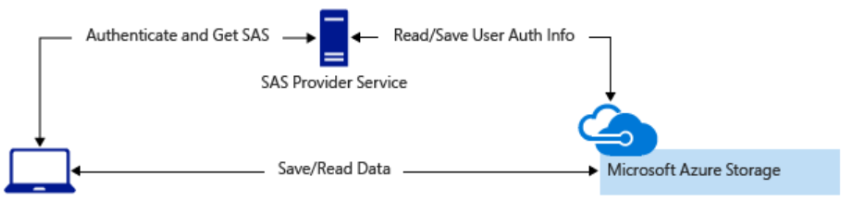
A lightweight service authenticates clients and then generates SAS.
- Clients use SAS to directly access resources.
- SAS defines access permissions and duration.
- Reduces need for routing data through the proxy.
SAS Characteristics
- SAS provides granular control over access permissions.
- Account-level SAS can grant access to multiple Azure Storage services (blob, file, queue, table).
- Users can define start and expiry time for validity.
- Users specify permissions (e.g., read/write but not delete).
- Supports account-level and service-level access:
- Account-Level SAS
Grants access to all services/resources in the account, including file system operations. - Service-Level SAS
Grants access to specific resources, such as downloading a file or listing folder contents.
- Account-Level SAS
You can use a Stored Access Policy with service-level SAS to provide additional control.
Policies allow grouping SAS and applying further restrictions.
- Optional SAS Configuration:
- IP Address: Restrict usage to specific IP addresses/ranges.
- Protocol: Limit access to certain protocols (e.g., HTTPS only).
Configuring Shared Access Signature in Azure Portal
When creating a SAS in the Azure Portal, users configure the following:
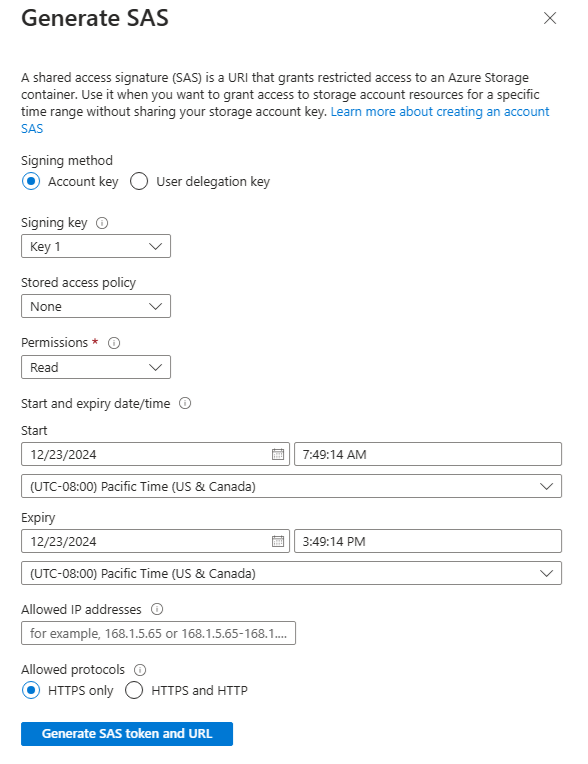
- Signing Method: Choose Account Key or User Delegation Key.
- Signing Key: Select a key from the account key list.
- Permissions: Choose granted permissions, e.g., read or write.
- Start/Expiry Date and Time: Define SAS validity window.
- Allowed IP Addresses (Optional): Specify allowed IPs or ranges.
- Allowed Protocols (Optional): Define access protocols, such as HTTPS.
Identify Parameters from URI and SAS
When creating a Shared Access Signature (SAS), a Uniform Resource Identifier (URI) is formed using parameters and a token. A URI consists of:
- Azure storage resource URI
- SAS token
URI = Resource + SAS Token
SAS URI Example
Here is an example of a service-level SAS URI granting read and write access to a blob:
https://myaccount.blob.core.windows.net/?restype=service&comp=properties&sv=2015-04-05&ss=bf&st=2015-04-29T22%3A18%3A26Z&se=2015-04-30T02%3A23%3A26Z&sr=b&sp=rw&sip=168.1.5.60-168.1.5.70&spr=https&sig=F%6GRVAZ5Cdj2Pw4tgU7IlSTkWgn7bUkkAg8P6HESXwmf%4B
URI Parameter Explanation
| Parameter | Example | Description |
|---|---|---|
| Resource URI | https://myaccount.blob.core.windows.net/?restype=service&comp=properties | Specifies Azure Storage endpoint and extra parameters (this is a service-level blob operation). |
| Storage version (sv) | sv=2015-04-05 | Specifies the API version for Azure Storage. |
| Storage service (ss) | ss=bf | Indicates services SAS applies to (Blob and File in this case). |
| Start time (st) | st=2015-04-29T22%3A18%3A26Z | (Optional) Start time for the SAS in UTC. Can be omitted to make SAS valid immediately. |
| Expiry time (se) | se=2015-04-30T02%3A23%3A26Z | SAS expiration time in UTC. |
| Resource (sr) | sr=b | Indicates the resource type (b = blob). |
| Permissions (sp) | sp=rw | Access permissions (r = read, w = write). |
| IP range (sip) | sip=168.1.5.60-168.1.5.70 | Restricts access to specified IP addresses. |
| Protocol (spr) | spr=https | Restricts access to HTTPS only. |
| Signature (sig) | sig=... | Used to authenticate access via HMAC SHA256 with Base64 encoding. |
Summary
SAS URIs are built from resource + token, with configuration parameters that give fine-grained control over:
- Access permissions
- Expiration duration
- Allowed IPs and protocols
- Resource types accessible
Understanding each parameter ensures secure and efficient SAS setup.
Encryption in Azure Storage
Protect stored data in Azure Storage (data at rest) with automatic encryption to meet organizational security and compliance needs.
Key Points About Azure Storage Encryption
-
Automatic Encryption
Data is automatically encrypted before being stored and decrypted upon retrieval—no code/app changes required. -
Account Access Keys
Azure generates two 512-bit access keys when a storage account is created. These keys are used for authorization with Shared Key or SAS. -
Key Management
Azure Key Vault is recommended to securely manage, rotate, and regenerate keys without app interruption. -
Encryption Standards
Azure uses AES 256-bit encryption—one of the strongest encryption ciphers available. -
Enabled by Default
Encryption is active for all storage accounts (new and existing) and cannot be disabled.
Azure Storage Encryption Configuration Options
-
Infrastructure Encryption
Double encryption—once at service level, once at infrastructure level, using different keys and algorithms. -
Platform-Managed Keys (PMK)
Keys fully managed by Azure—no user interaction needed. -
Customer-Managed Keys (CMK)
Keys managed by the customer via Key Vault or HSM. Supports Bring Your Own Key (BYOK).
Azure Storage offers built-in encryption and flexible key management,
allowing for strong data protection—either fully automated by Azure or controlled by the customer.
Creating Customer-Managed Keys
Gives customers full control over the encryption keys used to protect data in Azure Storage.
Key Considerations for Customer-Managed Keys
-
Flexibility and Control
Customers can create, disable, audit, rotate, and control access to their own encryption keys. -
Azure Key Vault
Keys are stored and managed through Azure Key Vault. Can be newly created or reused. -
Region Requirement
The storage account and Key Vault must be in the same region, but can be in different subscriptions. -
Key Management Options
Users can choose:- Microsoft-Managed Keys (PMK)
- Customer-Managed Keys (CMK)
-
Configuration in Azure Portal
Users specify the key URI manually or select from available Key Vault entries.
Configuring Customer-Managed Keys
In the Azure Portal, users can configure encryption using customer-managed keys. You can either generate your own key or use Microsoft-managed keys.
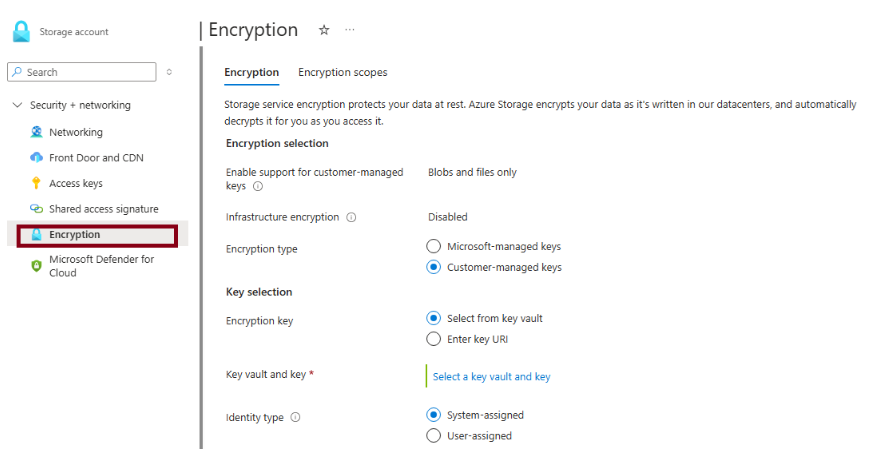
Configuration Steps:
- Encryption Type: Choose how keys will be managed—by Microsoft or the customer.
- Encryption Key: Enter the key URI manually or select from an existing Key Vault.
Implementing Azure Storage Security
Key Considerations
When using SAS in applications, several risks must be managed.
-
SAS Compromise Risk
If compromised, anyone with the SAS can access storage resources. -
SAS Expiry
If the SAS used by the client app expires and can't be refreshed, app functionality may break.
Risk Management Recommendations
| Recommendation | Description |
|---|---|
| Always use HTTPS for creation/distribution | If sent via HTTP and intercepted, attackers can hijack the SAS. Man-in-the-middle attacks could compromise or corrupt data. |
| Use stored access policies when possible | Stored access policies allow revoking permissions without regenerating account keys. Set future expiry dates. |
| Set short expiry for ad-hoc SAS | If compromised, a short expiry reduces potential damage. Also limits the data volume uploaded. |
| Have clients auto-renew SAS | Clients should renew SAS before expiration. This allows time to retry if the SAS provider service is down. |
| Plan SAS start time carefully | Time skew between machines may cause failures. It's good practice to set the start time at least 15 minutes in the past. |
| Grant minimal access permissions | Follow the principle of least privilege. If a user only needs read access to one entity, grant only that. |
| Understand billing for SAS usage | Limit permissions to reduce the risk of abuse. Read/write permissions may incur charges. Use short-lived SAS to reduce impact. |
| Validate client-written data | After writing data using SAS, validate it before use. Protects against malicious or corrupted data uploads. |
| Don’t assume SAS is always the right choice | For sensitive operations, consider using a middle-tier service for validation, authentication, and audit before writing to storage. |
| Monitor with Azure Storage Analytics | Use logging and metrics to detect spikes in failed auth, which may indicate SAS provider service disruption or policy deletion. |