Introduction to Git and Version Control
Git is an open-sourced version control system (VCS) used for tracking changes in files, allowing teams to work collaboratively while also maintaining the integrity of the source code. These files (source code, documents, etc.) can be stored and managed in GitLab using git.
What is Git
Git is a free and open source version control system (VCS) designed to handle everything from small to large projects with speed and efficiency.
Git records all of the changes made to a file in a repository (a database), enabling the collaboration between software developers. Git comes with amazing features that support non-linear development and can handle large projects:
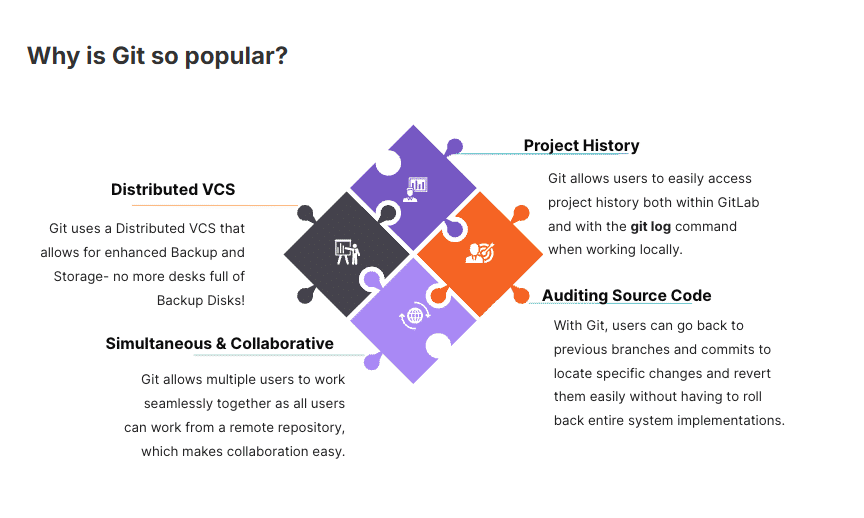
Instead of having a single source for the entire version of a software that's created, with Git you can have multiple working copies that contain the entire change history. You can check the history of a repository and see when there were made changes, by who and why. With Git everybody who works on a project can have a separate version of the project locally (a branch), on their machine, and when they upload their work to the server it will synchronise automatically to other versions out there (master branch).
Git Benefits
- Free and open source
- Supports non-linear development
- Tracks history of files
- Creates backups
- Supports collaboration - Git can be command line or GUI driven, allowing everyone to contribute easily.
- Scalable - Git's branching model can adapt to fit the workflow of almost any team.
- It's a distributed environment - does not require a constant connection to a central server.
What is a Version Control System ?
Git is a Version Control System. But what is a Version Control System?
A version control system (VCS) tracks changes to a file or set of files over time. Developers can check out a file from the server, make changes, and check the file back in. The server then stores the new version of the file.
There are three types of Version Control Systems:
- Local Version Control Systems
- Centralized Version Control Systems (CVCS)
- Distributed Version Control Systems (DVCS)
Centralised vs Distributed Version Control Systems
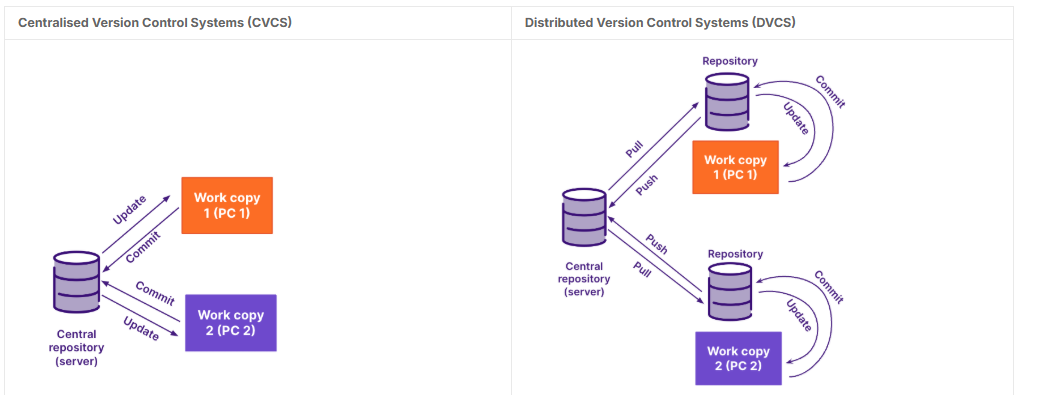
Git can either be a Centralized or Distributed VCS. Let's take a look at the advantages and disadvantages of CVCS and DVCS:
| Centralised Version Control Systems (CVCS) | Distributed Version Control Systems (DVCS) |
|---|---|
| Developers have access to the entire code base | Operations are performed on local servers or machines, instead of one single repository |
| Operations are performed on a single repository (a server) | Offers more flexibility than CVCS and the possibility to work offline |
| Since changes are made to a central repository, other developers are not aware of code changes until they are merged | No need to depend upon the central server. Users can copy (clone) the entire history of a project locally and work independently |
| Developers work using a local copy of the repo (pulling what they need), then commit and resolve conflicts when merging to the repository | Merge conflicts are less common, as every developer works on their own piece of code |
| Easy to learn and set up for Git beginners | Getting new changes = pulling; merging local changes = pushing |
| Difficult and time consuming to work on branches compared to DVCS | Harder to start with for Git beginners |
| It can take longer to copy the entire repo locally if the project is big | |
| Developers tend to work in silos for longer periods than when using CVCS |
The three most well-known version control tools (also known as revision control systems) are Git, Subversion (SVN), and Mercurial.
Benefits of version control
-
Quality Teams can review, comment, and improve each other's code and assets.
-
Acceleration Branch code, make changes, and merge commits faster.
-
Visibility Understand and spark team collaboration to foster greater release build and release patterns. Better visibility improves everything from project management to code quality.
Common Git Terms and Definitions
Branch
- Used to develop features separate and isolated from your team
- Share and work on the same source code
- The main branch is the main (default) branch
- $ git branch [branch_name]
Tag
- Used to mark a code version release
- $ git tag
Checkout
- Create and navigate or switch between branches
- “Checking out” is the execution of the command $ git checkout
Commit
- Mechanism for saving changes to your local repository
- Point-in-Time Snapshot
- Commit snapshots are "safe" versions of a project - Git will never change them unless you explicitly ask it to.
- $ git commit
Push
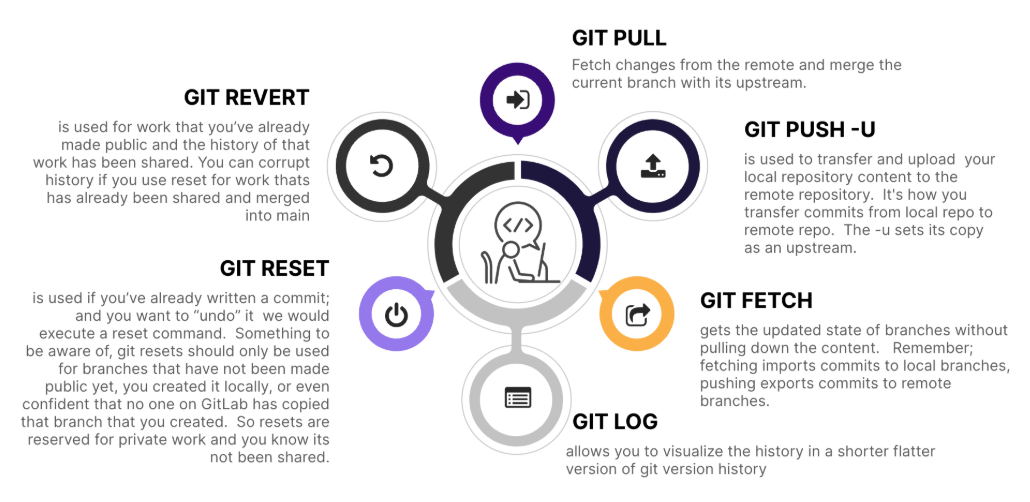
- Transfer or upload content from your local repository to the remote repository
- “Pushing” transfers commits from local -> remote repositories
- Pushing exports commits $ git push
- Fetching imports commits $ git fetch
Basic Git Commands
Git Pull, Git Push, and Git fetchs all deal with synchronizing repositories but in slightly different ways.
Git fetch tells your local git to retrieve the latest meta-data info from the original (without transferring any files).
It checks to see if there are any changes available.
Git pull does that AND brings (a copy) those changes from the remote repository.
| Command | Description |
|---|---|
git status | See the status of your work: new, staged, modified files, and current branch. |
git diff [file] | Show changes between working directory and staging area. |
git diff --staged [file] | Show changes between staging area and index (repository committed status). |
git checkout -- [file] | Discard changes in working directory. ⚠️ This operation is unrecoverable. |
git add [file] | Add a file to the staging area. Use . instead of a full file path to add all changed files from the current directory down into the directory tree. |
git reset [file] | Move file back from staging area to working directory. |
git commit | Create a new commit from changes added to the staging area. Commit must have a message. |
Basic Git Workflow
The basic git workflow (agnostic of software used) involves isolating the work into different types of Git branches. Basically, the Git flow is a branching strategy - knowing when to use different types of branches during the development process, in order to organize and speed up the releases. In the usual Git flow, there are five different branch types:
- Main (or Master) - created at the start of a project and is maintained throughout the development process. The main branch in the Git flow should contain production-ready code that can be released.
- Develop - Created at the start of a project; contains pre-production code with newly developed features that are in the process of being tested.
- Feature - the most common type of branch in the Git flow. It is used when adding new features to the code, basically the working branch which will be merged back into the development branch when the feature is ready
- Release - used when preparing new production releases
- Hotfix - used to quickly address necessary changes in the main branch
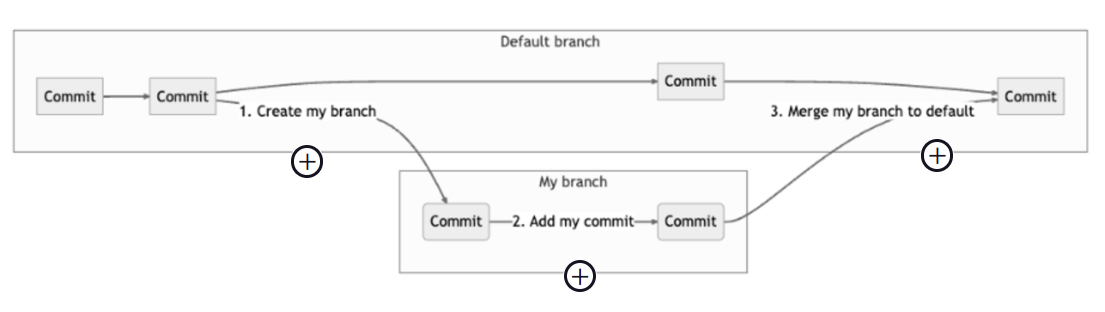
Each time you push a change, Git records it as a unique commit. These commits make up the history of when and how a file changed, and who changed it.

By default, the contents of a repository are in a default branch. To make changes, you need to work in your own branch.