Gitlab CI CD Functions
Continuous Integration (CI) is a collaborative software development practice where developers frequently integrate their code changes into a shared repository. Automated builds and tests are then run to validate the changes, ensuring code quality. CI fosters collaboration among team members by promoting regular code integration, early issue detection, and a collective approach to maintaining a stable and reliable codebase.
Continuous Delivery (CD) is a software development practice that aims to automate and streamline the process of delivering code changes to production environments in a frequent and reliable manner. This approach helps ensure that software is always in a releasable state, making it easier to respond to customer feedback, deliver new features, and fix bugs promptly.
Together, CI and CD accelerate how quickly your team can deliver results for your end users.
What is CI / CD ?
GitLab CI/CD is a tool for software development using the continuous methodologies:

| Continuous Integration | Continuous Delivery |
|---|---|
| With Continuous Integration (CI), Developers share their new code to a feature branch in a Merge Request. | Continuous Delivery (CD) automates delivery of validated code to a staging environment. |
| This triggers a CI pipeline to build, test, and validate the new code before merging the changes to the main code base. | Continuous Deployment goes further and is a practice in which each code change is pushed through a pipeline and is put into production automatically. |
Together, CI and CD accelerate how quickly your team can deliver results for your end users.
- Continuous Integration helps you catch and reduce bugs early in the development cycle
- Continuous Delivery and Deployment move verified code to your applications faster.
Continuous Integration at GitLab
Consider an application that has its code stored in a Git repository in GitLab. Developers push code changes every day, multiple times a day. For every push they get immediate feedback about the quality and possible risks of their changes. These scripts help decrease the chances that you introduce errors in your application.
This practice is known as Continuous Integration. Each change submitted to an application, even to development branches, is built and tested automatically and continuously. These tests ensure the changes pass all tests, guidelines, and code compliance standards you established for your application.
GitLab itself is an example of a project that uses Continuous Integration as a software development method. For every push to the project, a set of checks run against the code.
Benefits of Continuous Integration
| Benefit | Description |
|---|---|
| Fast error detection | Also known as failing faster. Allows developers to fix problems while fresh in their mind. Enables teams to run their automated testing suites that they craft around our project. |
| Reduced integration problems | Decreases the frequent occurrences of “it works on my machine.” Ensures that our application is deployable and can run in not only the developer’s environment, but in a production environment as well. |
| Avoids compounding problems | Allows teams to develop faster, with more confidence, reducing the risk of buggy code, and failed deployments. |
Continuous Delivery at GitLab
Continuous Delivery is a step beyond Continuous Integration. Not only is your application built and tested each time a code change is pushed to the codebase, the application is also deployed continuously. However, with continuous delivery, you trigger the deployments to production manually.
Continuous Delivery automatically deploys the code to non-production environments, like staging, without the need for human intervention. However, when it comes to deploying changes to the production environment, it necessitates human oversight and, at times, manual approval to ensure a strategic approach.
Continuous Deployment is another step beyond Continuous delivery. The difference is that instead of deploying your application to production manually, you set it to be deployed automatically. Human intervention is not required.
Continuous Delivery checks the code automatically, but it requires human intervention to manually and strategically trigger the deployment of the changes.
Benefits of Continuous Delivery
| Benefit | Description |
|---|---|
| Ensures every change is releasable | Test everything, including deployment, before calling it done. |
| Lowers risk of each release | When you release smaller changes more frequently, you catch errors much earlier in the development process. And it’s easier to roll back smaller changes when you need to. |
| Delivers value more frequently | Reliable deployments mean more releases. Releasing new features early and often — means you get more frequent feedback, giving you the ability to learn from your customers. |
| Tight customer feedback loops | Fast and frequent customer feedback on changes: The customer feedback loop is an integral part of Continuous Delivery, as it allows for timely and valuable insights from customers ensuring that delivered features and updates align closely with their needs and expectations. |
How GitLab CI/CD Works
To use GitLab CI/CD, all you need is an application codebase hosted in a Git repository, and for your build, test, and deployment scripts to be specified in a file called .gitlab-ci.yml, located in the root path of your repository (more on that later).
GitLab CI/CD fits in a common development workflow. Click the icons below to learn more.
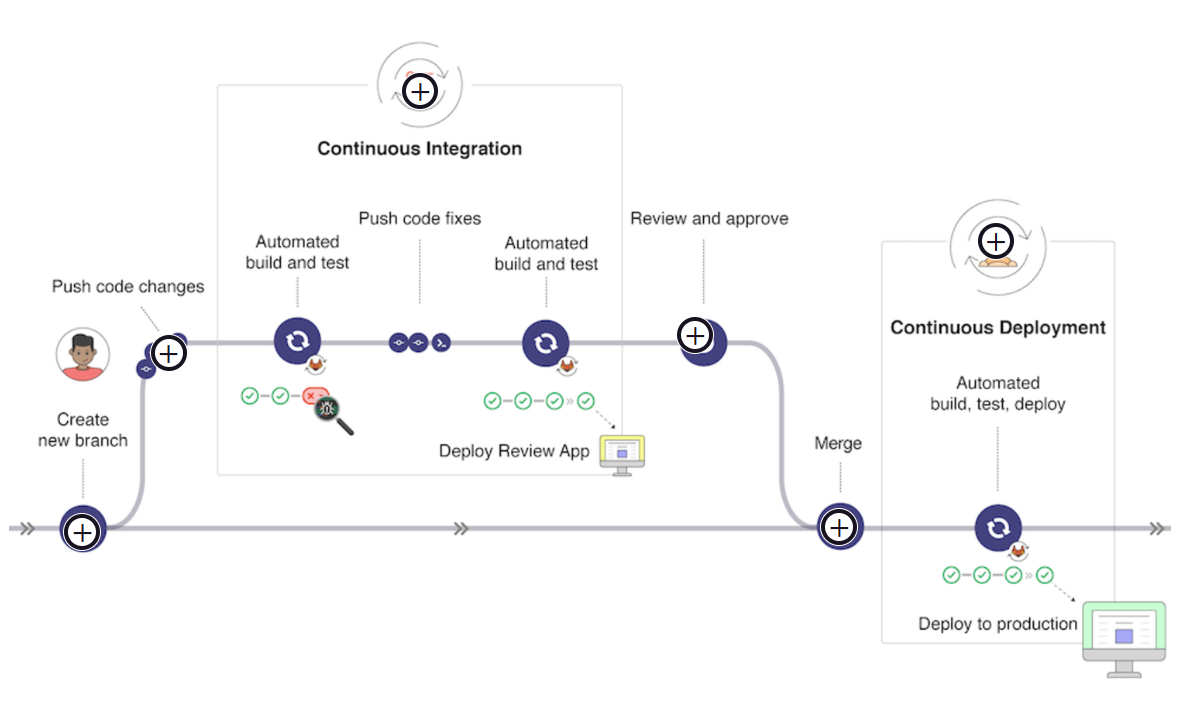
Create new branch
You can start by discussing a code implementation in an issue and working locally on your proposed changes.
Push code change
Then you can push your commits to a feature branch in a remote repository that’s hosted in GitLab, which triggers the CI/CD pipeline for your project.
Continuous Integration
Then, GitLab CI/CD:
Runs automated scripts (sequentially or in parallel) to:
- Build and test your application.
- Preview the changes in a Review App, the same as you would see on your localhost.
Review and approve
After the implementation works as expected, get your code reviewed and approved.
Merge
Merge the feature branch into the default branch.
Continuous Deployment
GitLab CI/CD deploys your changes automatically to a production environment. If something goes wrong, you can roll back your changes.
GitLab CI/CD: Key Ingredients
To use GitLab CI/CD you or your GitLab administrator must first define a pipeline within a YAML file called .gitlab-ci.yml and then install and configure a Gitlab Runner.
.gitlab-ci.yml
This YAML file is the pipeline definition file. Think of it as a set of instructions that you create to define your CI pipeline. It specified the stages, jobs, and actions that you want to perform. Think of the YAML file as the brains, and the runner as the body. The in-depth configuration of these files are covered separately in a dedicated self-service GitLab CI/CD Course.
GitLab Runner
The GitLab Runner, a file written in Go, will run the jobs specified in the YAML file using an API to communicate with GitLab. A GitLab Runner is a lightweight, highly-scalable agent that picks up a CI job through the coordinator API of GitLab CI/CD, it runs a job, and sends the result back to the GitLab instance. Your GitLab administrator can configure shared runners to run on multiple projects, and you can set up your own by project.
Runner Architecture
GitLab provides Runner SaaS, enabling you run your CI/CD jobs on GitLab.com using SaaS runners hosted by GitLab to seamlessly build, test and deploy your application on different environments. These runners are fully integrated with GitLab.com and are enabled by default for all projects, with no configuration required.
If you so choose, you have the option to install and manage runners independently. This is a high-level architectural diagram of how a runner relates to GitLab. Typically you would install the runner on a server that's separate from GitLab.
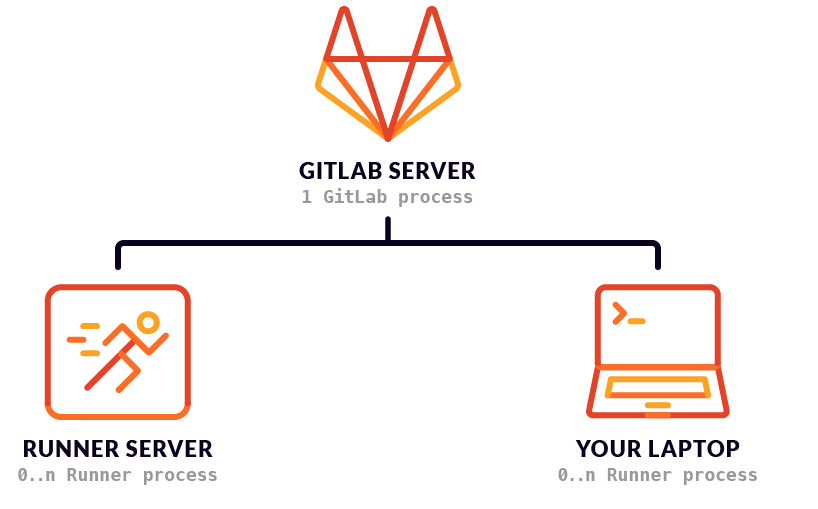
Runners can be installed:
- In the cloud
- Self-managed on your own instance
- It can be single process or scaled to having a fleet of runners
Key takeaways:
- A Runner is hosted on a separate node than the GitLab server
- Runners execute the instructions configured in your ci-yml file. That is how you author your own CI in GitLab!
- Anywhere that you can install the gitlab runner binary is where you can host a runner (example: Dockerized Runner or Kubernetes Executor)
Learn more
Example .gitlab-ci.yml file
This is what a .gitlab-ci.yaml file looks like at a high-level. YAML is a human-readable data format and standard that can be used in conjunction with all programming languages and is often used to write configuration files (or configuration data).
The YAML syntax is stored in the root of a project and version controlled along with the rest of your code.
YAML files start with an image. The image is pulled in from GitLab, a URL, or Docker Hub.
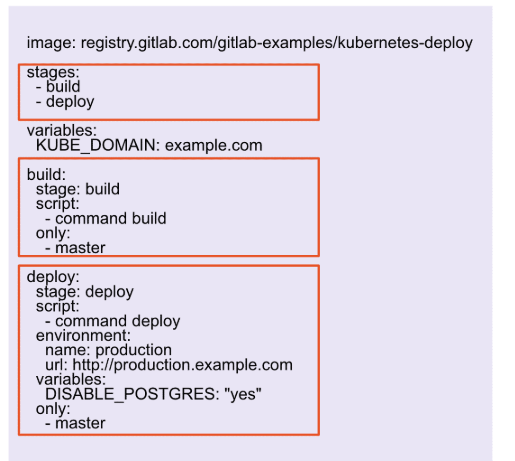
| Section | Description |
|---|---|
| Stages | Defines the stages for the pipeline. In this example, the stages are specified as “build” and “deploy.” |
| Build | Represents the “build” job. The stage is defined as “build”, followed by the job script. |
| Deploy | Represents the “deploy” job. The stage is specified as “deploy.” It also includes an environment, variables, and an only statement for the job. |
Anatomy of a CI/CD Pipeline
This is an example of a pipeline graph that shows what the CI/CD build looks like. It lets you see how a set of one or more jobs are executed in the stages you define in the YAML file for the pipeline.
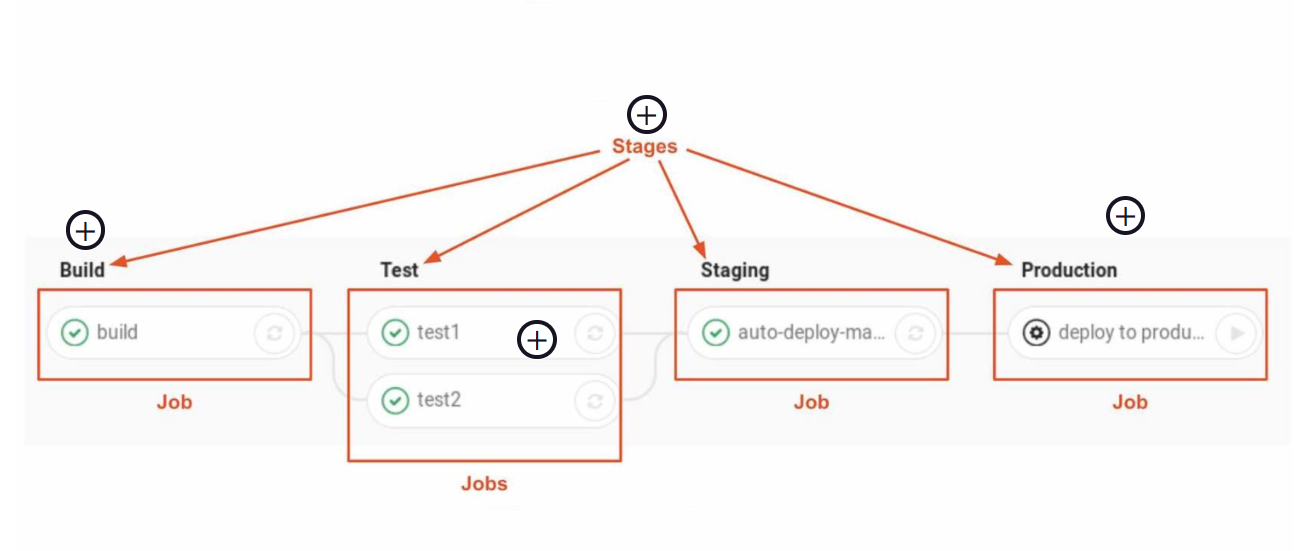
What are stages?
Stages are a collection of jobs to be run in parallel. The default stages are Build, Test, and Deploy. In this example the ci.yml file has 4 pipeline stages defined: Build, Test, Staging, and Production. The stages in a pipeline run in serial to each other
Build
What are jobs?
- Jobs are scripts that perform tasks.
- For example: test1; test2;
- The jobs in each stage are executed in parallel.
- If one job in a stage fails, the next stage is not (usually) executed.
Test
Icons and Buttons When viewing a CI/CD pipeline in GitLab, you will see a series of icons and buttons available for you to hover over or click on.
- Green check = passed
- Play button/gear = manual play action before this executes
- Retry arrows
Production
What are environments? Environments are where we deploy to.
- For example: Build, Test, Staging, Production
- These are specified in the jobs within the ci.yml file